Working with Variables in SPSS Statistics
In SPSS Statistics, you need to define your variables, which occurs in the Variable View. To access the Variable View you need to click on the  tab (this will become highlighted:
  ), as shown below:

Published with written permission from SPSS Statistics, IBM Corporation.
In this Variable View, you can adjust the properties of each of your variables under 10 categories: Name, Type, Width, Decimals, Label, Values, Missing, Columns, Align and Measure.
 To change the name of a column (variable) in the Data View window, click in the appropriate cell and type in the new name. The names in this column must not start with a number. They also cannot contain special characters such as / * $, space etc. You will be given an error message if your name is in illegal format.
 To define the type of data contained in the column (e.g., characters, strings, numbers, etc.), click on the appropriate row in the Type column.
 You can alter the number of digits displayed in the column by clicking in the appropriate Width cell.
 You can alter the number of digits after the decimal place by clicking in the appropriate Decimals cell.
 Click on the appropriate cell in the Label column to give a long description, which will help you to understand the variable you are referring to.
 You can give a text label for category codes by clicking on the appropriate cell in the column values. The default is "None".
First, click on the "None" cell box and then on the  button, as highlighted in the diagram below:

Published with written permission from SPSS Statistics, IBM Corporation.
In the Value Labels dialogue box, enter the numeric code value "1" in the text box: Value:. This value corresponds to the group representing "Males", so enter "Males" in the Label: box.

Published with written permission from SPSS Statistics, IBM Corporation.
Click on the  button.


 button.
 To define different type of missing value code, click on the appropriate cell in the Missing column.
 The width of column in the data view sheet can be altered by clicking in the appropriate Column cell.
 To align the text or numbers in Data View, click in the appropriate Align cell.
 To label the scale of data, click in the appropriate Measure cell. In our example, we need to select the
  value.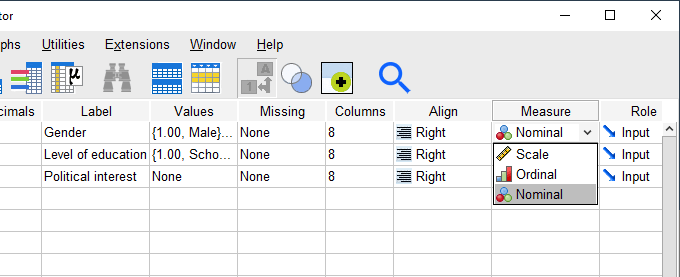
 button in the toolbar at the top of the Data Editor, as highlighted below: