SPSS Statistics
Introduction to recoding single or multiple values in SPSS Statistics
There are many different reasons why you may want to create a new value (e.g., "1") to represent an old value (e.g., "120"). You can do this for one value or multiple values at the same time. In our example, we show you have to do this for multiple values, but the procedure is the same for one value.
In the sections that follow, we start with the example we use to demonstrating how to recode a single value, before showing you how to set up your data in the Variable View and Data View of SPSS Statistics. Next, we set out the SPSS Statistics procedure to recode a single value using our example, which also illustrates how the new variable will appear in the Variable View and Data View of SPSS Statistics. Finally, we show the syntax that is run by SPSS Statistics to recode a single value, just in case you prefer to use syntax (i.e., code) rather than the graphical user interface (GUI) when working with SPSS Statistics.
Note: If we do not cover the type of recoding you are trying to carry out, please contact us, providing a description of what you are trying to do. We may already have another SPSS Statistics guide to help in our website.
SPSS Statistics
Example used to recode single or multiple values
In this example, the number of runs scored by five batsman in a game of cricket were recorded, as shown below:
| |
Number of runs by batsmen |
| Batsmen |
1 |
2 |
3 |
4 |
5 |
| Runs |
86 |
120 |
56 |
10 |
18 |
In the table above, the scores for each batsman are recorded as the cricket match took place. Therefore, the first batsman to compete in the cricket match scored 86 runs (i.e., Batsman 1 above), the second batsman scored 120 runs (Batsman 2), the third batsman scored 56 runs (Batsman 3), and so forth.
When the cricket match finished, we wanted to recode the data so that the batsmen were rank ordered by their number of runs. Therefore, we wanted the batsman with the highest number of runs to be given a ranking of "1" and the batsman with the lowest number of runs to be given a ranking of "5", as shown below:
| |
Number of runs by batsmen |
| Rank ordered |
1 |
2 |
3 |
4 |
5 |
| Runs |
120 |
86 |
56 |
18 |
10 |
In the table above, a code of "1" was given to the batsman with the highest number of runs, which was "120" (i.e., "1" = "120"), a code of "2" was given to the batsman with the second highest number of runs, which was "86" (i.e., "2" = "86"), and so forth, such that a code of "5" was given to the batsman with the lowest number of runs, which was "10" (i.e., "5" = "10").
In the next section, we explain how to set up this data in SPSS Statistics. However, if you already know how to correctly set up your data in SPSS Statistics, you can skip this section and go to the SPSS Statistics procedure to recode your values instead.
SPSS Statistics
Data setup in SPSS Statistics when recoding single values
To recode single or multiple values, you first have to set up your data using the Variable View and Data View in SPSS Statistics. The Variable View is where you define the types of variables you have and the Data View is where you enter your data for these variables. In this example, there is only one variable, which is the number of runs scored by each batsman, as shown in the Variable View below:

Published with written permission from SPSS Statistics, IBM Corporation.
Our variable, Runs, is entered on row in the Variable View above. To set up this variable, we gave it the name, "Runs", under the column, as well as a label, "Number of runs scored by each batsman", under the column. In our example, Runs is a continuous variable, so we selected under the column. As a result, the Data View will look as follows:
Published with written permission from SPSS Statistics, IBM Corporation.
Under the column of the Data View above, the number of runs scored by each batsman is entered on a separate row. For example, "86" was entered on row to reflect the 86 runs scored by Batsman 1, "120" was entered on row to reflect the 120 runs scored by Batsman 2, "56" was entered on row to reflect the 56 runs scored by Batsman 3, and so forth. Since these cells will initially be empty, you need to click into the cells to enter your data.
SPSS Statistics
SPSS Statistics procedure to recode single or multiple values
In this section, we explain how to use the Recode into Different Values procedure in SPSS Statistics to recode our variable, Runs, so that the values are ranked ordered. This will create the new variable: RankedRuns.
Note: The Recode into a Different Variables procedure is not destructive. Therefore, your existing variable will not be replaced. Instead, a new variable is created.
- Click on Transform > Recode into Different Variables... in the main menu, as shown below:
Published with written permission from SPSS Statistics, IBM Corporation.
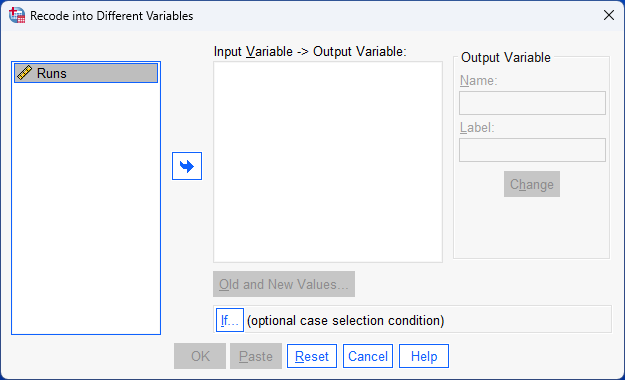
You will be presented with the Recode into Different Variables dialogue box, as shown below:
Published with written permission from SPSS Statistics, IBM Corporation.
- Transfer the variable to be recoded, Runs, into the Numeric Variable -> Output Variable: box, by using the button. You will end up with the following screen:
Published with written permission from SPSS Statistics, IBM Corporation.
Note: You will notice that the –Output Variable– area is no longer "greyed out", and neither is the button.
- The –Output Variable– area is where you enter the name and label of the new variable you want to create. Therefore, we entered the name, "RankedRuns", into the Name: box, to create the new variable, RankedRuns, and then entered a label for our new variable, "Ranked Runs", as shown below:
Published with written permission from SPSS Statistics, IBM Corporation.
- Click on the button to create this new variable. You will be presented with an updated Numeric Variable -> Output Variable: box, as shown below:
Published with written permission from SPSS Statistics, IBM Corporation.
- Click on the button and you will be presented with the Recode into Different Variables: Old and New Values dialogue box, as shown below:
Published with written permission from SPSS Statistics, IBM Corporation.
In this example, we want the "old values" from our variable, Runs, to be converted into "new values" in our new variable, RankedRuns, as shown below:
120 (old) becomes 1 (new)
86 (old) becomes 2 (new)
56 (old) becomes 3 (new)
18 (old) becomes 4 (new)
10 (old) becomes 5 (new)
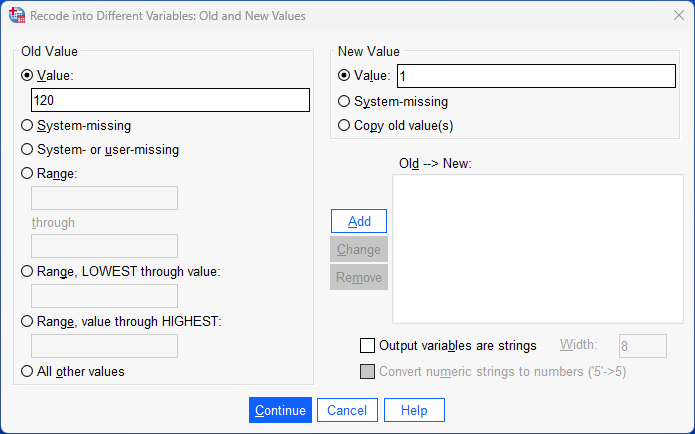
- Enter "120" into the Value: box in the –Old Value– area and enter "1" into the Value: box in the –New Value– area, as shown below:
Published with written permission from SPSS Statistics, IBM Corporation.
- Click on the button. This will commit the changes and you will see a new entry in the Old --> New: box reflecting this particular recoding, as shown below:
Published with written permission from SPSS Statistics, IBM Corporation.
Explanation: This instructs SPSS Statistics to add a value of "1" for the new variable, RankedRuns, whenever there is a value of "120" in the existing variable, Runs. This new value of "1" will be shown in the Data View of SPSS Statistics after completing all the steps that follow.
Note: In the steps that follow, you will repeat the process above for the other values that need recoding so that you end up with the following screen:
You can see all the recoding instructions in the Old --> New: box above.
- Enter "86" into the Value: box in the –Old Value– area and enter "2" into the Value: box in the –New Value– area, as shown below:
Published with written permission from SPSS Statistics, IBM Corporation.
- Click on the button. This will commit the changes and you will see a new entry in the Old -->New: box reflecting this particular recoding, as shown below:
Published with written permission from SPSS Statistics, IBM Corporation.
Explanation: This instructs SPSS Statistics to add a value of "2" for the new variable, RankedRuns, whenever there is a value of "86" in the existing variable, Runs.
- Enter "56" into the Value: box in the –Old Value– area and enter "3" into the Value: box in the –New Value– area, as shown below:
Published with written permission from SPSS Statistics, IBM Corporation.
- Click on the button. This will commit the changes and you will see a new entry in the Old --> New: box reflecting this particular recoding, as shown below:
Published with written permission from SPSS Statistics, IBM Corporation.
Explanation: This instructs SPSS Statistics to add a value of "3" for the new variable, RankedRuns, whenever there is a value of "56" in the existing variable, Runs.
- Enter "18" into the Value: box in the –Old Value– area and enter "4" into the Value: box in the –New Value– area, as shown below:
Published with written permission from SPSS Statistics, IBM Corporation.
- Click on the button. This will commit the changes and you will see a new entry in the Old --> New: box reflecting this particular recoding, as shown below:
Published with written permission from SPSS Statistics, IBM Corporation.
Explanation: This instructs SPSS Statistics to add a value of "4" for the new variable, RankedRuns, whenever there is a value of "18" in the existing variable, Runs.
- Enter "10" into the Value: box in the –Old Value– area and enter "5" into the Value: box in the –New Value– area, as shown below:
Published with written permission from SPSS Statistics, IBM Corporation.
- Click on the button. This will commit the changes and you will see a new entry in the Old --> New: box reflecting this particular recoding, as shown below:
Published with written permission from SPSS Statistics, IBM Corporation.
Explanation: This instructs SPSS Statistics to add a value of "5" for the new variable, RankedRuns, whenever there is a value of "10" in the existing variable, Runs.
- Click on the button and you will be returned to the Recode into Different Variables dialogue box, as shown below:
Published with written permission from SPSS Statistics, IBM Corporation.
- Click on the button to produce the new variable containing the recoded values, RankedRuns, as shown below:
Published with written permission from SPSS Statistics, IBM Corporation.
Note: By default, SPSS Statistics creates a nominal variable when you use the Recode into a Different Variables procedure (i.e., RankedRuns). However, the variable should be ordinal (i.e., RankedRuns). Therefore, you need to change the measurement type of your variable from nominal to ordinal in the Variable View. We show you how to do this in the next step.
- Click on the tab, which will become highlighted: . You will be presented with the Variable View that includes your new variable, RankedRuns, as highlighted below:
Published with written permission from SPSS Statistics, IBM Corporation.
- Change the measurement type of your variable from to under the column to reflect that the new, ranked ordered variable, RankedRuns, is an ordinal variable. Next, change the number of decimal places from the default, "2", to "0", under the column. The setup for your new variable, RankedRuns, is highlighted below:
Published with written permission from SPSS Statistics, IBM Corporation.
Note: For consistency, we also changed the cell under the column from to and changed the alignment from to under the column.
- Click on the tab, which will become highlighted: . You will be presented with the Data View that includes your new variable, RankedRuns, under the column, as shown below:
Published with written permission from SPSS Statistics, IBM Corporation.
Explanation: Under the column in the Data View above, the new ordered ranks are displayed for the variable, Runs. For example, the batsman with the highest number of runs, "120", along row under the column has been given a value of "1" under the column (i.e., "120" = "1"). As another example, the batsman with the lowest number of runs, "10", along row under the column, has been given a value of "5" under the column (i.e., "10" = "5").
You have now successfully recoded your values. In the next section, we shown how to use syntax to recode multiple values.
SPSS Statistics
Syntax to recode single values
You can also use syntax and the Syntax Editor in SPSS Statistics to recode single or multiple values rather than the graphical user interface (GUI) we illustrated in this guide. To illustrate this, the syntax for recoding multiple values for the example in this guide is shown below:
Published with written permission from SPSS Statistics, IBM Corporation.
Note: If you would like us to explain each part of the syntax above, please contact us and we will add a new section to help.
Referencing
Laerd Statistics (2025). Recoding single or multiple values in SPSS Statistics. Statistical tutorials and software guides. Retrieved from https://statistics.laerd.com/


 in the Variable View above. To set up this variable, we gave it the name, "Runs", under the
  column, as well as a label, "Number of runs scored by each batsman", under the
  column. In our example,
  under the
  column. As a result, the Data View will look as follows:
 column of the Data View above, the number of runs scored by each batsman is entered on a separate row. For example, "86" was entered on row
  to reflect the 120 runs scored by Batsman 2, "56" was entered on row
  to reflect the 56 runs scored by Batsman 3, and so forth. Since these cells will initially be empty, you need to click into the cells to enter your data.
 button. You will end up with the following screen:

 button.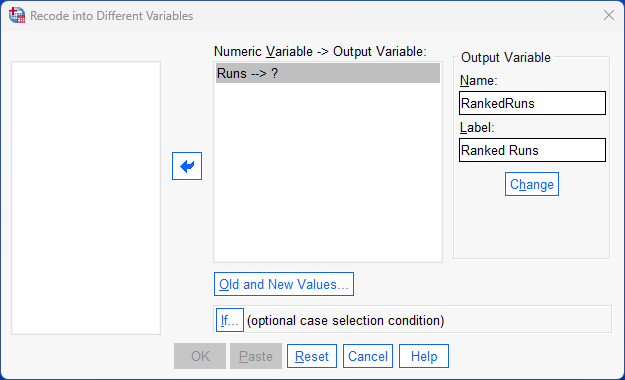
 button to create this new variable. You will be presented with an updated

 button. This will commit the changes and you will see a new entry in the


 button and you will be returned to the Recode into Different Variables dialogue box, as shown below:

 button to produce the new variable containing the recoded values,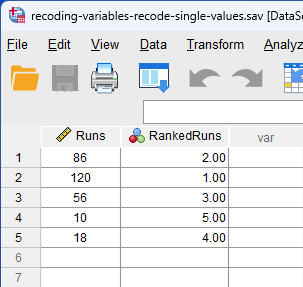
 tab, which will become highlighted:
  . You will be presented with the Variable View that includes your new variable,
 to
to  under the
  column. The setup for your new variable,
 column from
  to
to  and changed the alignment from
  to
to  under the
  column.
 tab, which will become highlighted:
  . You will be presented with the Data View that includes your new variable,
  column, as shown below:

 under the