Ranking Data in SPSS Statistics
Introduction
Ranking is used to recode the data into their rank ordering from smallest to largest or largest to smallest. We will demonstrate this by entering in some data and ranking it in SPSS Statistics.
| Data to Rank | ||||||||||||||
|---|---|---|---|---|---|---|---|---|---|---|---|---|---|---|
| 87 | 26 | 54 | 39 | 67 | ||||||||||
| 12 | 28 | 98 | 54 | 68 | ||||||||||
| 23 | 64 | 28 | 43 | 77 | ||||||||||
| Table: Data to enter into SPSS Statistics. | ||||||||||||||
Your data should be entered into SPSS Statistics, as shown below:
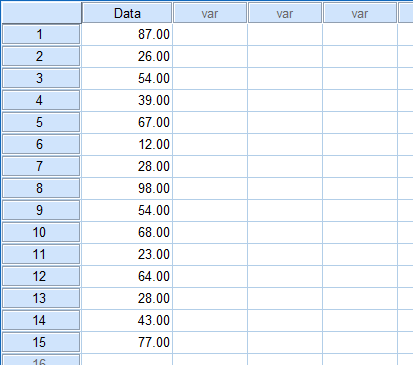
Published with written permission from SPSS Statistics, IBM Corporation.
Note: We have named the variable as Data, which you will see reflected in the name of the column (i.e.,  ). Remember that each individual's results go on a separate line (row) in SPSS Statistics.
SPSS Statistics
Procedure in SPSS Statistics
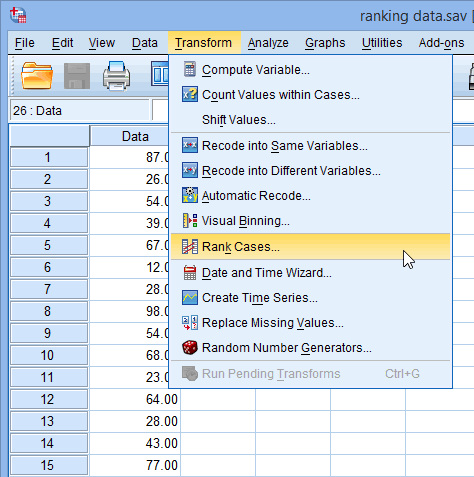
The procedure below shows you how to rank your data:
- Click on Transform > Rank Cases... in the top menu, as shown below:

Published with written permission from SPSS Statistics, IBM Corporation.
- Click on the Data variable in the left-hand box, and click on the button to move it to the Variable(s): box. Next, uncheck the Display summary tables checkbox.
If you want to have the largest value to have a rank of "1", select the radio box Largest value from the –Assign Rank 1 to– box. We will stick with the default in this example, which is Smallest value.
Published with written permission from SPSS Statistics, IBM Corporation.
- Click on the button.
 button to move it to the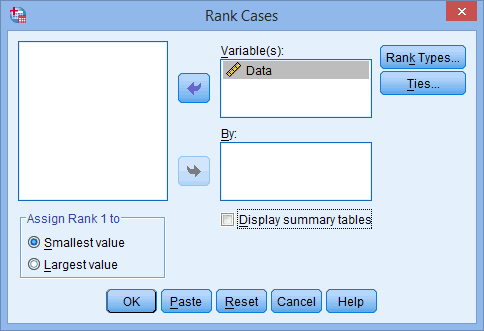
 button.

